Installing Cataclysm is the same routine as any Forge content mod, but a few details trip people up: using the wrong Minecraft version, dropping the source ZIP into the mods folder, or forgetting a library mod. This guide goes through the process in order so the game starts cleanly the first time.
Before you start
You need Minecraft Java Edition and a working launcher. Cataclysm does not run on Bedrock Edition, consoles or Pocket Edition; if that is your platform, read the Bedrock and PE explainer first.
Next, decide which Minecraft version you are going to play. Every mod file is built for one specific Minecraft version and one loader. The archive linked in our download section comes from a repository named for Minecraft 1.19.2, so the examples below use 1.19.2. If you use a different file, swap in the version that file lists.
Make a backup. Copy any world you care about before adding a content mod. New structures only appear in chunks that have not been generated yet, and removing a mod later can leave broken blocks behind.
Step 1: Install Forge for the same Minecraft version
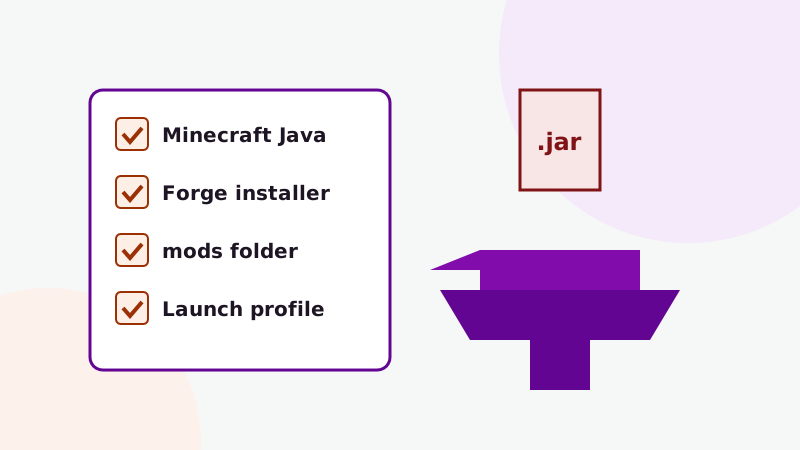
- Launch vanilla Minecraft once in the target version (for example 1.19.2) so the launcher downloads it.
- Download the Forge installer for that exact version from the official Minecraft Forge files site. Pick the installer, not the MDK or source package.
- Run the installer, choose Install client, and confirm the folder points to your
.minecraftdirectory. - Open the launcher. A new Forge profile appears. Start it once and close the game after it reaches the main menu. This creates the
modsfolder.
Step 2: Get a loadable mod file
Minecraft loads mods from .jar files. The download on this site is a source archive (a ZIP of the project's code), which Forge cannot load directly. You have two options:
- Use a compiled release that matches your Minecraft and Forge versions, from the mod's listing on a major mod platform.
- Compile it yourself from the source archive. It takes one Gradle command; the build-from-source guide explains it.
Never place the source ZIP itself in the mods folder. Forge will ignore it or complain, and it is the most common reason people report that "the mod doesn't show up".
Step 3: Check library dependencies
Some Cataclysm releases list other mods they rely on, such as shared library mods. The release page or the mods.toml file inside the jar names them. Install each listed dependency in the version the release asks for. If you skip one, Forge stops at startup with a message naming the missing mod, which is annoying but easy to fix.
Step 4: Put the files in the mods folder
| System | Default mods folder |
|---|---|
| Windows | %appdata%\.minecraft\mods |
| macOS | ~/Library/Application Support/minecraft/mods |
| Linux | ~/.minecraft/mods |
If you use a third-party launcher with separate instances, each instance has its own mods folder. Put the Cataclysm jar and its dependencies in the folder of the instance you are going to launch.
Step 5: Launch and confirm it loaded
Start the Forge profile. On the title screen, open Mods and look for Cataclysm in the list. If it is there, create a new world or travel to unexplored areas of an existing one. The mod's structures are spread across the Overworld, the Nether and the End; the structures guide covers what to look for.
If the game crashes instead, do not reinstall everything at random. Open the newest file in the crash-reports folder or logs/latest.log and look for the first error. Our crash fixes guide matches the usual messages to their causes.
Installing on a server
Cataclysm adds new entities, blocks and structures, so it has to be installed on the server and on every player's client, in the same version. Install the Forge server for the matching Minecraft version, put the same jar and dependencies in the server's mods folder, and share the exact file list with your players.
Want the bigger picture? Return to the Cataclysm Mod homepage or browse every guide.